Settings page
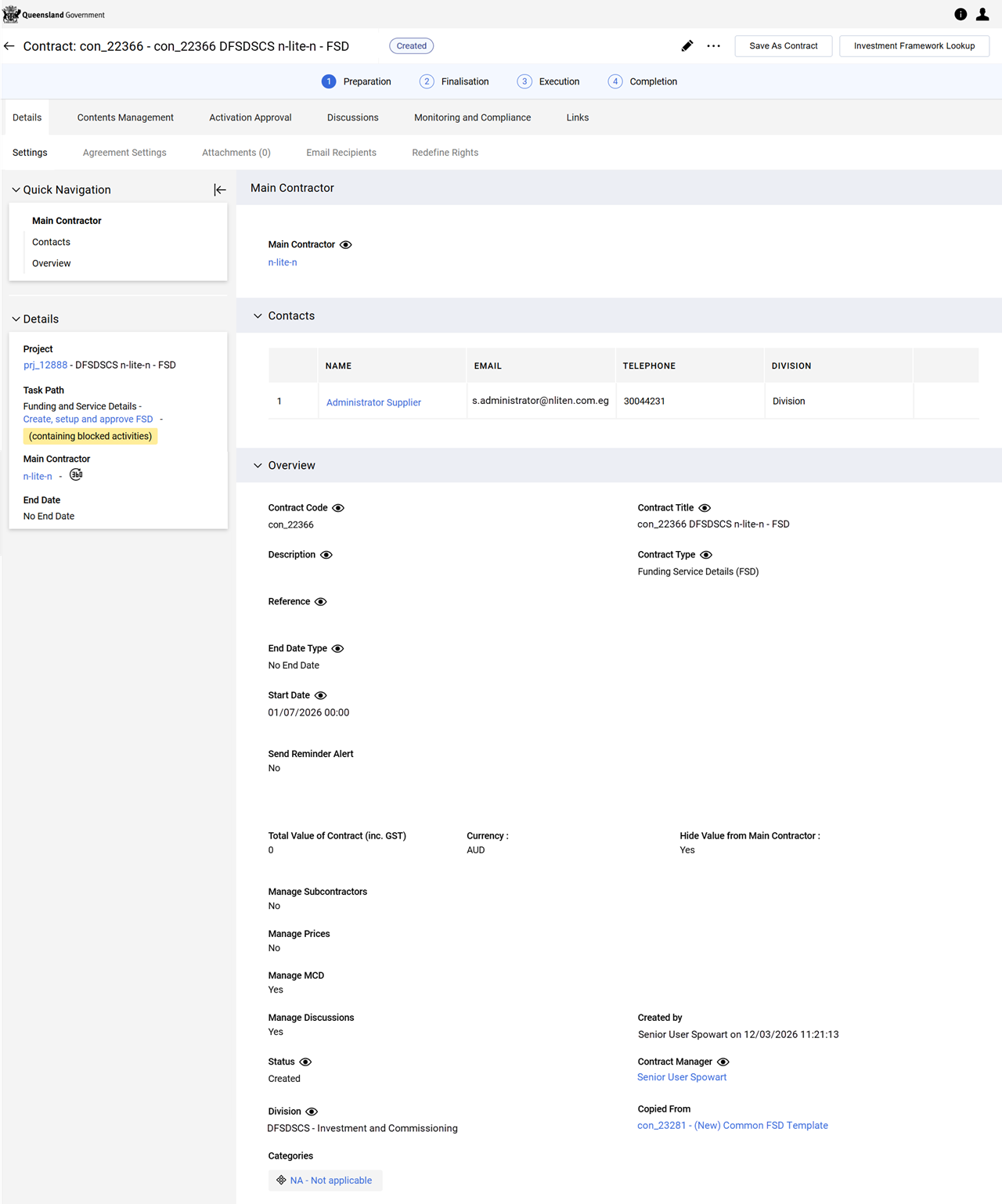
A contract's Details tab > Settings page allows configuration of a contract's behaviour and to record important contract information.
-
The Main Contractor section (i.e. the Funded Organisation) is generally selected when the contract is created but can be managed from the Settings page.
-
The Contacts section defaults to the Funded Organisation's super-user, however contacts are editable and are used in the MCD Agreement process (i.e. contract negotiation) when Require Main Contractor MCD Agreement is Yes. (Refer to Agreement Settings page).
-
The Overview section of the Settings page allows you to record important contract information such as the Description, Reference Code, End/Delivery Date Type, Start and End Dates, Total Value and Contract Currency. The Contract Manager can decide whether the Contract Value and Currency are displayed to the supplier.
-
A contract expiry reminder can be configured for the contract. Refer to Send Reminder Alert.
-
Enable functionality within the contract (i.e. management of the Main Document (MCD), Prices and Subcontractors). Refer to Manage MCD and Manage Prices.
-
Enable the activation of the Discussions area which is used to collaboratively define contract contents.
-
The page associates categories, business units and regional association to the contract, to contribute to the production of meaningfully organised reports.
Screen
Fields
| Field name | Description |
|---|---|
|
Main Contractor (i.e. a Funded Organisation) |
This field is mandatory to activate the contract. Enter a new name in the field or use the search feature to search for and select the Funded Organisation. Note A Funded Organisation with a status of Deactivated or Blocked are not selectable. |
|
Contacts |
Configure the Funded Organisation contacts which may be involved in the contract’s management. Click + to search for and select users. If not configured the Funded Organisation's main user (i.e. Funded Organisation's Supplier Administrator) will be the predefined contact. Note These contacts are used in the Main Contractor negotiation process. refer xxxx |
|
Contract Code |
The contract code assigned when the contract was created. This is read-only. |
|
Contract Title |
The contract title was configured when the contract was created but can be edited. Overwrite the text in the field to change the title. |
|
Description |
Enter a description of the contract in the text field (optional). |
|
Contract Type |
The contract type is populated based on the contract template when the contract was created. Warning Changing the Contract Type modifies the set of questions available in Contents Management tab > Additional Information page. Contract Type cannot be changed after the contract is activated. DO NOT change this value. |
|
Reference |
Enter an optional reference code/infomation for the contract. |
|
End Date Type |
Make a selection from the dropdown list.
|
|
Start Date |
Enter the date for the official start of the contract. This can be a past date to record a contract that has already started or a future date for a contract that is not yet active. Note A contract created from an RFQ is generally considered to have started when a supplier was awarded - the date defaults to the award date. |
|
End Date |
Enter the formal end date for contract. Note This field does not display when No End Date is selected in the End Date Type field. |
|
To send an email alert when the contract is about to expire, set field to Yes. When Yes is selected, the following fields display:
|
|
|
Total Value of Contract (inc. GST) |
The monetary value of the contract. This field populates automatically when contract is created from an RFQ. |
|
Currency |
Currency of the contract. This field populates automatically when contract is created from an RFQ. |
|
Hide Value from Main Contractor |
Select Yes to hide the value from the main contractor (Funded Organisation) on the contract. |
|
Funding Amount (excl. GST) |
Total of the prices itemised in the contract price schedule. Note Displays when the Manage Prices field is set to Yes. The field is read only. |
|
Manage Subcontractors |
Yes enables the buyer to enter a list of suppliers who act as subcontractors to the main contractor (i.e. Funded Organisation). Note This MUST be left No. Departments do not allow a Funded Organisation to subcontract. |
|
Yes enables the department to specify if a schedule of prices is to be recorded on the contract. This value would be applicable to Funding Schedules (FS) and Particulars (SFP) contract types. A Funding and Services Details (FSD) contract has no prices. Note When allowing price management, configure how prices can be negotiated with the main contractor. Refer to Agreement Settings page. |
|
|
Select a value to allow the main contract document to be created from MS Word or from Clauses. Note When either Yes value is selected, the main contract document can be negotiated with the main contractor. Refer to Agreement Settings page.
|
|
|
Manage Discussions |
Yes to activate a Discussions area, used to collaboratively define contract contents. |
|
Contract Manager |
Is used to populate in P2i Downstream Dashboard as the Contract Officer in the |
|
Division |
Is a combination of the Department and the Service Stream |
|
Categories |
Select one or more categories to associate with the contract. Values listed are available from the Investment Specification. |
